Saturday, October 9, 2010

PrestaShop Tips - How to change module block positions on a page

At PrestaShop, most features and functions are installed as add-on modules and they appear as blocks on page UI. You can hide/show or change positions of those blocks at back office according to your preferences. Below is a brief instructions on how to do this.

0. Log in to your Back office
1. Click "Modules" tab
2. Click "Positions" sub-menu
3. Use the arrow icon to move up or down to change positions of block.
4. Click x to hide block if you want.


The block are separated into different section left column blocks, right column blocks, header contents blocks and so son.

PrestaShop Tips - How to fix sort problem in State dropdown list

At PrestaShop, if you are shipping your products to a country that contains States, you will have to manually create States list at you back office. And also you have to set the country as "Contains states". If you do not configure correctly, there will be some errors at payment process, at least this will happen if you use Paypal.
See here on how to configuration for country contains States


If you are using 1.3.1 or lower, here is another problem if you don't input States data in the alphabetical order of name. The drop down list in address page will displayed incorrectly at FireFox.

See below screen for FireFox and IE.


Why would this happen?
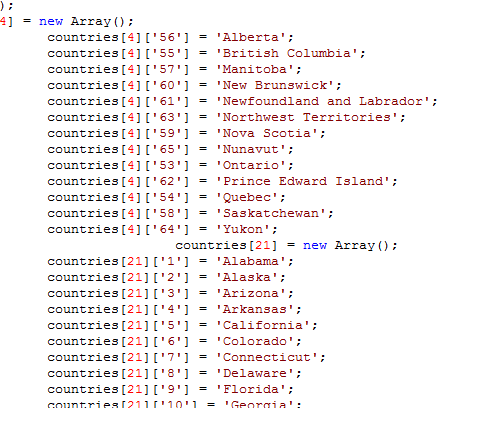
I checked that the data is sorted correctly in both source code PHP and Javascript. The problem is caused by different browser. It seems that IE and FireFox behave in different. I guess that FireFox is using the value[key] as sort key to display stats the drop down list, not in the order that PrestaShop prepared in a Javascript array.

See here is Javascript code in HTML page:


Solution:
The only solution I can figure out for this issue, is to change the ID of your states to make them in a correct order.

I also heard that the new version 1.3.2 of PrestaShop has fixed the problem, so you have another option to upgrade to a new version 1.3.2.

Temporary Fix solution 1:
Delete those States that are not in correct order.
Re-input your States data in alphabetical order of the State Name.

Temporary Fix solution 2:
Re-assign the ID in database, by tools like PhpMyAdmin. But you must start the new ID from the max number that currently used in State table.

Note:
After you modified your state data, you must update your related state ID in address tables, other wise, when you use existing account/address to place an order, error will occurs.

The following post discussed on how to fix the problem by change PHP code, you can have a try.

http://www.prestashop.com/forums/viewthread/73116/

PrestaShop Tips - How to sort and filter data at back office data management

At PrestaShop back office, all data management page are using the same architecture. There is a very useful function to help focus your job.

- Filtering function - This function it to filter out the data list based on the data you are working on, for example, if your are working on managing States, you can filter out the States by the country you working on, i.e. "Canada"

- Sorting function - This function is to sort your data in a your preference way, in ascending or descending. You can sort for any field and simple click arrows under the field name on the header row.

See the screen shot for your reference.

Thursday, October 7, 2010

RIA Tips - Domain Service Class Wizard Doesn't Find Entities

Have you ever experienced that when you try to add new Domain Service, the Domain Service Class Wizard Doesn't Find Entities? Even if you have selected a existing Entity Data Model? See the below screen.


Click to enlarge screen image

Here are some of the scenarios that lead to above situation appears.
1. You have just added the Entity Model (.edmx), but have not build your project yet. Because the Domain Service Class Wizard needs refer the CSDL, SSDL, MSL files to get the list of entities. Those files are generated from Entity Data Model when you build your project. By default those files are included in the output assembly DLL file, not visible. See here on how to do those file visible

Solution: Before adding Domain Service, build your project after yous Entity Data Model is created.

2. If you have manually created CSDL, SSDL, MSL files instead of using the Entiy Data Model Wizard that comes with Visual Studio. (See here on how to manually create Entity Data Model)

If you have created your those file manually, Domain Service Class Wizard does not know where to find those files.

3. You have generated Entity Data Model by Entity Data Model, but you set Meta Artifact Processing of you model to "Copy To Output Directory" instead of default "Embed in Output Assembly".

Solution: Set Meta Artifact Processing back to default "Embed in Output Assembly".
See my another post on how to do this

It seems that Domain Service Class Wizard only look into output assembly(BUG?).

In this case, you can see CSDL, SSDL, MSL files under your bin folder. This also cause Domain Service Class Wizard can not find the entities.

4. Visual Studio is screwed up, is working properly.

Solution: Restart Visual Studio

PrestaShop Information - Cost effective video solution

PrestaShop now offers you the most cost effective video solution: Treepodia e-commerce video platform

Special! Get a $750* credit from PrestaShop to cover your entire catalog with great product videos and test the Treepodia system free of charge!
With a few simple mouse clicks, Treepodia enables online retailers to automatically cover all products with dynamic videos in less than an hour.
The video content is always up-to-date with price changes, user reviews and special promotions. The videos are then syndicated to leading video sharing sites as well as the major search engines via a Dynamic Video Sitemap, to increase SEO.

More information about Treepodia visit:
http://www.prestashop.com/en/partner_treepodia/

Wednesday, October 6, 2010

PrestaShop Tips - How to allow mutiple access at maintenance mode without IP address

PrestaShop has a maintenance mode which only allow access from specified IP addresses. This function is very good and can satisfy most store owner's needs.

But for some reason (e.g. testing),if you want allow multiple users to access, you will have to collect all user's IP addresses. Another problem is that most store owners are using dynamic IP address. It is troublesome to look up his/her public IP and change the setting.

Here is I introduce a solution that can solve above problem. It only requires a few lines of code.

[Solution]
The solution is to use the same maintenance mode setting, but I will use the IP address field as Maintenance Access Token. Then at maintenance mode, you access your front store with the Maintenance Access Token as URL parameter.

1. Change ./init.php to make this happen
Replace line 204 with following lines.(line # may differ, see screen shot for detail)


session_start();
if(isset($_GET['MAT']))$_SESSION['MAT'] = $_GET['MAT'];
if (isset($maintenance) AND (!isset($_SESSION['MAT']) OR $_SESSION['MAT'] !=Configuration::get('PS_MAINTENANCE_IP')))


For 1.4x, you need change as following (thanks Debbie for the contribution)

Find this line in file /classes/FrontClass.php,

if (!in_array(Tools::getRemoteAddr(), explode(',', Configuration::get('PS_MAINTENANCE_IP'))))

replace it with this:

session_start();
if(isset($_GET['MAT']))$_SESSION['MAT'] = $_GET['MAT'];
if (!isset($_SESSION['MAT']) OR $_SESSION['MAT'] !=Configuration::get('PS_MAINTENANCE_IP'))


2. Set you site to maintenance and set Maintenance Access Toeken


3. Access your site with Maintenance Access Token
http://yoursiteurl/index.php?MAT=aaa.bbb.ccc.ddd

Now you access at maintenance mode without look up your IP address any more.

Tuesday, October 5, 2010

ADO.NET Entity Framework TIPS -What is CSDL, SSDL, MSL, EDMX Files

What are CSDL, SSDL, and MSL Files


CSDL - Conceptual schema definition language.
SSDL - Store schema definition language
MSL - Mapping specification language
are XML-based languages that respectively describe the conceptual model, storage model, and the mapping between these models. In an Entity Framework application, model and mapping metadata are loaded from three files with extensions .csdl, .ssdl, and .msl. The metadata contained in the .csdl and .ssdl files is loaded into instances of the System.Data.Metadata.Edm.EdmItemCollection and System.Data.Metadata.Edm.StoreItemCollection classes, which are accessible by using methods in the System.Data.Metadata.Edm.MetadataWorkspace class. Mapping information is not publicly accessible. The Entity Framework uses the metadata in these types to translate queries against the conceptual model to data source-specific commands.


When are they generated?


The Entity Data Model Designer (Entity Designer) stores model and mapping information in an .edmx file at design time. At build time the Entity Designer uses the information in an .edmx file to create the .csdl, .ssdl, and .msl files that are needed by the Entity Framework at runtime

Where are they located?


By default, they included in the binary file of output under bin folder. You are not able see the physical files.
But you can also output CSDL, SSDL, and MSL Files as saparated files to bin folder. Here is how to make this happen.


After change Meta Artifact Processing to "Copy to Output Directory", rebuild your project and you will see the CSDL, SSDL, and MSL Files are generated under bin.


Related Links
What is ASO.NET Entity Framework 4.0