Edito
PrestaStore becomes PrestaShop Addons: a new name, but still many possibilities for extending and customizing your shop, and now better categorized to help you to find the module or theme you dream about, ever faster.
Don’t forget that we will be attending the Salon E-Commerce Paris 2010, on September 21st, 22nd and 23rd 2010!
PrestaStore becomes PrestaShop Addons
PrestaStore changes its name and becomes PrestaShop Addons.
Find all the extensions for PrestaShop on PrestaShop Addons that made the success of PrestaStore: over 330 modules, 400 themes, all dedicated to assisting you in the success of your e- commerce.
New categories of modules have been introduced, such as Statistics and Analysis, Administration, Slideshows ... Altogether now, 20 categories of modules to improve your store!
The themes are not left out and are now classified by categories of activities: art, beauty, fashion ... all sectors of e-commerce are gathered!
About the developments...
The 1.3.2 version of PrestaShop is approaching, and is going to be released very soon. This new version will be even richer and will contain many improvements and optimizations worked since the v.1.3.1. of PrestaShop, on some key points of the solution, such as management of rounding, catalog, and SEO.
Many new features have been added into the 1.4 alpha version of PrestaShop this week, a version that already looks exceptional!
PrestaShop v1.4 alpha
* New version of TinyMCE (with possibility of including pictures and more easily integrated into the content)
* Management of the EU VAT
* New footer in the Back Office
* Improved cookie encryption possibilities with mcrypt (more efficient)
* Added management of the Iso numerical codes for currencies
The complete list of modifications is available via the SVN.
Friday, September 17, 2010


Thursday, September 9, 2010
Silverlight Tips - Error : Can not create an instance of [YourUserControl]
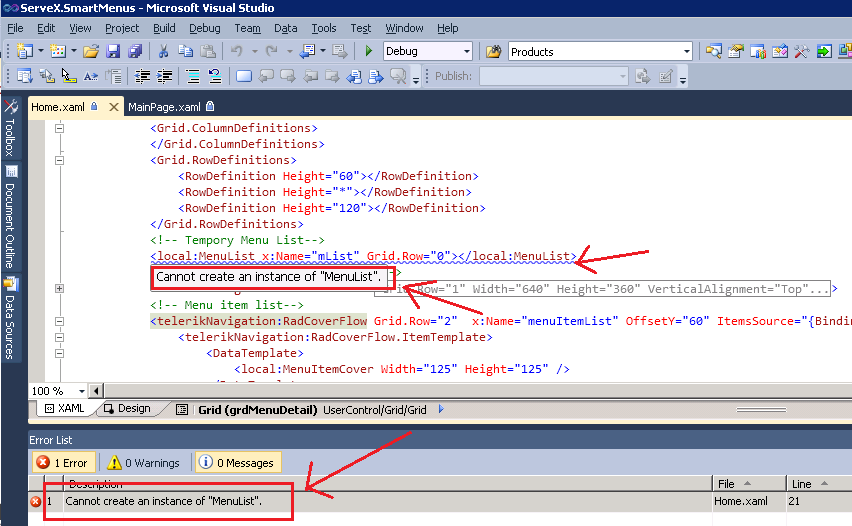
I have frequently come across following errors in XAML file which when you are using locally created Silverlight User Control. Locally means the User Control is created and used in your own silverlight application.
Can not an instance of [Your control name].
See the screen shot of error in Visual Studio.

Even this error happens, the project still can compile and run without any problem.
How Fix the errors.
There multiple causes of this issue. My issue was caused by using BorderBrush="{StaticResource GenericBorderBrush}".
'GenericBorderBrush' is defined in App.xaml. After I move the definition of 'GenericBorderBrush' to the top of the document (it was the last definition), the problem fixed. So I can now keep the use of BorderBrush="{StaticResource GenericBorderBrush}".
So my conclusion: one of causes of error "Can not create an instance ..." is some incorrect definition in youe App.xaml which causes the definitions below it to fail.
Hope this infomraiton helps
Can not an instance of [Your control name].
See the screen shot of error in Visual Studio.
Even this error happens, the project still can compile and run without any problem.
How Fix the errors.
There multiple causes of this issue. My issue was caused by using BorderBrush="{StaticResource GenericBorderBrush}".
'GenericBorderBrush' is defined in App.xaml. After I move the definition of 'GenericBorderBrush' to the top of the document (it was the last definition), the problem fixed. So I can now keep the use of BorderBrush="{StaticResource GenericBorderBrush}".
So my conclusion: one of causes of error "Can not create an instance ..." is some incorrect definition in youe App.xaml which causes the definitions below it to fail.
Hope this infomraiton helps
Wednesday, September 8, 2010
PrestaShop Tips - How to set featured products
Most eCommerce shopping software has Featured Products functionality to highlight certain products on your homepage. This function is also available at PrestaShop. Here is the instructions on how to set up.
A .To add a Featured Product to your Front Office homepage:
1. Go to Back Office >> Catalog >> (Category >>) Product page
2. On the Information tab, scroll down to the Catalog section.
3. In the Catalog list, mark (tick on) the Home check box:
4. Scroll down and click Save. The item will now display in the Featured Products section of your Front Office homepage.

Note:To remove a Featured Product from the shop homepage, unmark (tick off) the Home check box in the Catalog section of its admin Product Page.
B. Change maximum number of featured products
In the default Theme, the maximum number of Featured Products displayed at any one time is ten (10). To change this, g
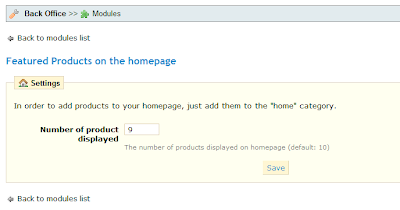
1. Back Office >> Modules >> Featured Products on the homepage module
2. Click "Configure"
3. Change the number and click "Save"
A .To add a Featured Product to your Front Office homepage:
1. Go to Back Office >> Catalog >> (Category >>) Product page
2. On the Information tab, scroll down to the Catalog section.
3. In the Catalog list, mark (tick on) the Home check box:
4. Scroll down and click Save. The item will now display in the Featured Products section of your Front Office homepage.

Note:To remove a Featured Product from the shop homepage, unmark (tick off) the Home check box in the Catalog section of its admin Product Page.
B. Change maximum number of featured products
In the default Theme, the maximum number of Featured Products displayed at any one time is ten (10). To change this, g
1. Back Office >> Modules >> Featured Products on the homepage module
2. Click "Configure"
3. Change the number and click "Save"

Sunday, September 5, 2010
PrestaShop Tips - set up the RSS feed block module
At PrestaShop, you can setup a RSS feed block to enrich the content of your web site.
Before you can setup RSS feed block, you must get the URL of RSS feed that you want to add to your website.
Here is the instructions on how to do this.
1. Log in to your PrestaShop back office
2. Click "Modules" tab
3. Find the "RSS feed block v1.0" (version may different) from the list and click "Install"
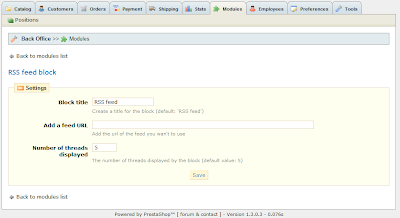
4. One the module is installed, the "configure" link will appear beside the module, click "configure", following screen will show up.
5. Input required field and click "save". (screen1 below)
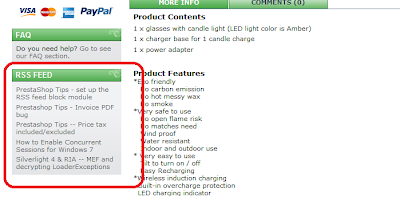
6. Confirm your block at your front office.(screen2 below)
Before you can setup RSS feed block, you must get the URL of RSS feed that you want to add to your website.
Here is the instructions on how to do this.
1. Log in to your PrestaShop back office
2. Click "Modules" tab
3. Find the "RSS feed block v1.0" (version may different) from the list and click "Install"
4. One the module is installed, the "configure" link will appear beside the module, click "configure", following screen will show up.
5. Input required field and click "save". (screen1 below)
6. Confirm your block at your front office.(screen2 below)


Sunday, August 22, 2010
Prestashop Tips - Invoice PDF bug
There is bug at invoice PDF / delivery slip if change price display from Tax included to Tax excluded.
The following problem occurs if you set Tax Excluded
Shipping Fee alwasy displayed as 0 in invice PDF
If you want to fix the problem, you must change back use Tax Included display.
Added on Oct 02,2010
I have found a way to fix the problem. Please see my another post here:
http://alvinjiang.blogspot.com/2010/10/prestashop-tips-pdf-invoice-with.html
The following problem occurs if you set Tax Excluded
Shipping Fee alwasy displayed as 0 in invice PDF
If you want to fix the problem, you must change back use Tax Included display.
Added on Oct 02,2010
I have found a way to fix the problem. Please see my another post here:
http://alvinjiang.blogspot.com/2010/10/prestashop-tips-pdf-invoice-with.html
Prestashop Tips -- Price tax included/excluded
At Prestashop, you set set price displayed as tax included ot tax excluded.
Th setting is customer group based.
Steps:
1. Login to back office
2. Go Customer tab
3. Select Groups
4. Find the customer group in the group list ad click "edit" link.
5. Select "Tax Included" or Tax Exclued
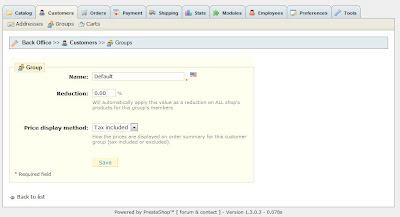
Th setting is customer group based.
Steps:
1. Login to back office
2. Go Customer tab
3. Select Groups
4. Find the customer group in the group list ad click "edit" link.
5. Select "Tax Included" or Tax Exclued

Sunday, July 11, 2010
How do I show .htaccess / .htpasswd files in Core FTP
The .htaccess file and .htpasswd files are present on Lynux/UNIX webservers, and server a variety of purposes, the most common of which is for MOD_Rewrite for SEO friendly URLs.
However, most FTP programs do not show these files by default, making it difficult to amend them!
If you use the Core FTP, the following instructions will show you how to change the Core FTP settings to display .htaccess files in your server directory listing.
1. Establish a connection to the relevant server.
2. Right-click anywhere in the remote server window
3. Select Directory Commands -> List Mode and then put the tick next to ‘Advanced’.
4. Refresh the directory, and if present, your .htaccess file will now be displayed
However, most FTP programs do not show these files by default, making it difficult to amend them!
If you use the Core FTP, the following instructions will show you how to change the Core FTP settings to display .htaccess files in your server directory listing.
1. Establish a connection to the relevant server.
2. Right-click anywhere in the remote server window
3. Select Directory Commands -> List Mode and then put the tick next to ‘Advanced’.
4. Refresh the directory, and if present, your .htaccess file will now be displayed
Subscribe to:
Posts (Atom)