Good news to Agile Paypal users.
Agile Paypal 1.4 has been released today.
With this new version, following changes and improvements have been included.
Ver 1.4 (2011.10.01)
====================
1. Use Ajax way to update carriers/country/state at Express Checkout - no page refresh any more, quick and fast
2. Integrated Redirect/subscription page into main page with header/footer/left/right columns.
3. Use a animated image show the progress while redirecting to Paypal - looks more professional
The above change 1. may fix some potential issue caused by "Automatically redirect to Canonical url".
Agile Paypal is a PrestaShop payment module that use Paypal.
It is express checkout module, that allow customer to checkout in just a few clicks, no customer registeration is required, it's fast quick checkout. Pay by Master/Visa/American Express at Paypal without registeration. It automatically creates customer account by information from Paypal and many more other feartures.
It also supports Paypal recurring payments to give you more options to collect your sale money and many more other features.
See more detail, please visit
http://addons-modules.com/
Saturday, October 1, 2011


Sunday, September 11, 2011
PrestaShop Module - Agile Seller Rating/Review/Comment module
We are proudly announce that Seller rating/review/comment module is not available.

What is it
It is a seller rating /comment module, is an accessory module of Agile Multiple Seller module. Buyer can feedback about seller by leaving comment and rating for the seller he/she buys product from.
Compatible Version It is compatible with PrestaShop 1.4x and any version of Agile Multiple Seller
This module only works together with Agile Multiple Seller module.
Features
only buyers can put rating/comment for sellers.
One order(transaction) one rating/comment only
There will a feedback waiting list for each buyer that list all orders/transactions for him/her to leave feedback.
At front office product detail page, there is Seller rating Summary info with 5 stars ratings
There is summary/average rating and rating/comment history for each seller
There are 3 predefined criteria: shipping, service, communication
You can add/modify/delete any number of criteria
Other Information
Install and configuration Video is available here
http://youtu.be/4d8G6_fV7E0
Demo Site
http://agileservex.com/prestashop142/
Contact us for admin access
Where to Buy
http://addons-modules.com/proeduct.php?id_product=35
Some of the screenshots

Seller Rating History/Summary

Buyer feedback waiting list/feedback form

Seller ranting summary at Product detail page
Agile Multiple Seller module installation and configuration vide is now available
A very good news for new PrestaShop owners who will use our Agile Multiple Seller/Vendor module, a install and configuration video now is available.
Below is the video script for your references.
Agile Multiple Seller Installation Guide
This video will demonstrate how to install and configure the Agile Multiple Seller module from Addons-Modules.com.
Installation
To get started with the installation, we are assuming you have the Agile Multiple Seller module on your local computer and that you are already logged into the PrestaShop Back Office.
Start by clicking on the Modules Tab.
Next, click "Add a module from my computer." This will expand a new section of the page called “Add a new module.”
Since the Agile Multiple Seller module is on your local computer, click the “Browse” button of the “Module file” input box.
This will bring up a new window where you can find the location of the Agile Multiple Seller module and choose that zipped folder. Then, click "Upload this module."
After the module is uploaded, go to the search bar and enter “Agile.” Select the Agile Multiple Seller module from the list. Prestashop will then take you to that module.
Now, you need to install the module by clicking the “Install” button.
After Installation
With the module installed, open your FTP program and connect to your Store’s files.
Copy the Category.php file from the following location:
YourStoreRoot/modules/agilemultipleseller/override/classes/Category.php
Now, paste that file into the following location:
YourStoreRoot/override/classes/Category.php
The next step is to verify that the Agile Multiple Seller Module automatically modified several core files. If the following files were not modified, for some reason, you will need to modify them manually, or the module will not work.
Check to be sure these three files have the modifications noted:
(The module installer has automatically taken care of this changes)
Modification #1:
• Affects: YourStoreRoot/admin/index.php
• Before following line:
o If ($id_tab = checkingTab($tab))
• Add following line
o If(Module::isInstalled('agilemultipleseller'))include(PS_ADMIN_DIR.'/../modules/agilemultipleseller/tabtranslator.php');
Modification #2:
• Affects: YourStoreRoot/admin/ajax_category_list.php
• Replace following line:
o If (Tools::getValue('token') != Tools::getAdminTokenLite('AdminCatalog'))
• With this line:
o If (Tools::getValue('token') != Tools::getAdminTokenLite('AdminCatalog') AND Tools::getValue('token') != Tools::getAdminToken('AdminCatalog'.(int)(Tab::getIdFromClassName('AgileCatalog')).(int)($cookie->id_employee)))
Modification #3:
• Affects: YourStoreRoot/admin/tabs/AdminCatalog.php
• Change the following two lines from "private" to "protected"
o private $adminCategories; becomes protected $adminCategories;
o private $adminProducts; becomes protected $adminProducts;
• Affects: YourStoreRoot/admin/tabs/AdminCMSContent.php
• Change the following two lines from "private" to "protected"
o private $adminCMSCategories; becomes protected $adminCMSCategories;
o private $adminCMS; becomes protected $adminCMS;
Configure the Module
With the module installed and the files verified, click the “Configure” hyperlink.
There are two sections on this page. The first being the “Settings” section and below that is the “Seller Profile Info” section.
Settings Section:
We’ll start with the “Settings” section. In this section, there are several choices to make. The first option asks you to choose whether the Store will collect all the money from a sale or if Sellers will collect money from the sale. For this example, we will choose “Store collects all payments.”
If you choose “Seller collects all payments,” you will need to be sure you are using a payment module that you have purchased from Addons-Modules.com due to the additional information that must be retrieved. If you use a payment module that was not created by Addons-Modules, the transaction will not be processed correctly, or at all.
Next, you’ll need to decide if you want to allow any Customer to become a Seller. Let’s click this check box.
If you choose not to click this check box, you can manually set up Sellers by adding them in the Employees Tab and then set their profile to “agilemultipleseller.”
The next option allows you to sign Customers up to a Seller’s account automatically. If you do not choose to sign Customers up automatically, but you did choose to allow Customers to become Sellers, the Customer can manually sign up for a Sellers account in their My Account area of the Front Office.
As noted in the previous option, you can manually set up Sellers by adding them in the Employees Tab and then set their profile to “agilemultipleseller.”
The next option allows you to choose whether or not your seller can create and edit categories. If you want them to be able to edit categories, check the box. For this example, we won’t check the box. That means that sellers can add products, but they cannot add nor edit categories.
The final selection se can make is the “Seller Info tab” check box. Here, you can choose to display a “Seller Info” tab in your Product Detail pages.
For instance, if you’ve checked the box and a customer views a Product Detail page in the Front office, a new tab will appear with the details the seller wants the customer to see such as their company name, address, and phone numbers. The seller can also display their location via a Google Map.
Lastly, if you made any changes, be sure you click the “Save” button.
Seller Profile Info Section:
The Seller Profile Info section points out that a new employee profile called “agilemultipleseller” was created when the module was installed.
You can view this new profile by going to the Employees tab and then the Profiles sub-tab.
You can change the permissions of the “agilemultipleseller” profile by going to the Employees tab, then the Permissions sub-tab. Then select the “agilemultipleseller” profile.
Please be sure you review the Maintenance Notes section as it contains important information to keep your module running smoothly.
Conclusion
That concludes this demonstration of how to install and configure the Agile Multiple Seller module.
Below is the video script for your references.
Agile Multiple Seller Installation Guide
This video will demonstrate how to install and configure the Agile Multiple Seller module from Addons-Modules.com.
Installation
To get started with the installation, we are assuming you have the Agile Multiple Seller module on your local computer and that you are already logged into the PrestaShop Back Office.
Start by clicking on the Modules Tab.
Next, click "Add a module from my computer." This will expand a new section of the page called “Add a new module.”
Since the Agile Multiple Seller module is on your local computer, click the “Browse” button of the “Module file” input box.
This will bring up a new window where you can find the location of the Agile Multiple Seller module and choose that zipped folder. Then, click "Upload this module."
After the module is uploaded, go to the search bar and enter “Agile.” Select the Agile Multiple Seller module from the list. Prestashop will then take you to that module.
Now, you need to install the module by clicking the “Install” button.
After Installation
With the module installed, open your FTP program and connect to your Store’s files.
Copy the Category.php file from the following location:
YourStoreRoot/modules/agilemultipleseller/override/classes/Category.php
Now, paste that file into the following location:
YourStoreRoot/override/classes/Category.php
The next step is to verify that the Agile Multiple Seller Module automatically modified several core files. If the following files were not modified, for some reason, you will need to modify them manually, or the module will not work.
Check to be sure these three files have the modifications noted:
(The module installer has automatically taken care of this changes)
Modification #1:
• Affects: YourStoreRoot/admin/index.php
• Before following line:
o If ($id_tab = checkingTab($tab))
• Add following line
o If(Module::isInstalled('agilemultipleseller'))include(PS_ADMIN_DIR.'/../modules/agilemultipleseller/tabtranslator.php');
Modification #2:
• Affects: YourStoreRoot/admin/ajax_category_list.php
• Replace following line:
o If (Tools::getValue('token') != Tools::getAdminTokenLite('AdminCatalog'))
• With this line:
o If (Tools::getValue('token') != Tools::getAdminTokenLite('AdminCatalog') AND Tools::getValue('token') != Tools::getAdminToken('AdminCatalog'.(int)(Tab::getIdFromClassName('AgileCatalog')).(int)($cookie->id_employee)))
Modification #3:
• Affects: YourStoreRoot/admin/tabs/AdminCatalog.php
• Change the following two lines from "private" to "protected"
o private $adminCategories; becomes protected $adminCategories;
o private $adminProducts; becomes protected $adminProducts;
• Affects: YourStoreRoot/admin/tabs/AdminCMSContent.php
• Change the following two lines from "private" to "protected"
o private $adminCMSCategories; becomes protected $adminCMSCategories;
o private $adminCMS; becomes protected $adminCMS;
Configure the Module
With the module installed and the files verified, click the “Configure” hyperlink.
There are two sections on this page. The first being the “Settings” section and below that is the “Seller Profile Info” section.
Settings Section:
We’ll start with the “Settings” section. In this section, there are several choices to make. The first option asks you to choose whether the Store will collect all the money from a sale or if Sellers will collect money from the sale. For this example, we will choose “Store collects all payments.”
If you choose “Seller collects all payments,” you will need to be sure you are using a payment module that you have purchased from Addons-Modules.com due to the additional information that must be retrieved. If you use a payment module that was not created by Addons-Modules, the transaction will not be processed correctly, or at all.
Next, you’ll need to decide if you want to allow any Customer to become a Seller. Let’s click this check box.
If you choose not to click this check box, you can manually set up Sellers by adding them in the Employees Tab and then set their profile to “agilemultipleseller.”
The next option allows you to sign Customers up to a Seller’s account automatically. If you do not choose to sign Customers up automatically, but you did choose to allow Customers to become Sellers, the Customer can manually sign up for a Sellers account in their My Account area of the Front Office.
As noted in the previous option, you can manually set up Sellers by adding them in the Employees Tab and then set their profile to “agilemultipleseller.”
The next option allows you to choose whether or not your seller can create and edit categories. If you want them to be able to edit categories, check the box. For this example, we won’t check the box. That means that sellers can add products, but they cannot add nor edit categories.
The final selection se can make is the “Seller Info tab” check box. Here, you can choose to display a “Seller Info” tab in your Product Detail pages.
For instance, if you’ve checked the box and a customer views a Product Detail page in the Front office, a new tab will appear with the details the seller wants the customer to see such as their company name, address, and phone numbers. The seller can also display their location via a Google Map.
Lastly, if you made any changes, be sure you click the “Save” button.
Seller Profile Info Section:
The Seller Profile Info section points out that a new employee profile called “agilemultipleseller” was created when the module was installed.
You can view this new profile by going to the Employees tab and then the Profiles sub-tab.
You can change the permissions of the “agilemultipleseller” profile by going to the Employees tab, then the Permissions sub-tab. Then select the “agilemultipleseller” profile.
Please be sure you review the Maintenance Notes section as it contains important information to keep your module running smoothly.
Conclusion
That concludes this demonstration of how to install and configure the Agile Multiple Seller module.
Tuesday, August 9, 2011
PrestaShop addons - Free PrestaShop addon for duplicating/coping emails from PrestaShop
What does it do?
===============
After install this addon, it will send a copy of each emails of PrestaSho to shop owner. So as PrestaShop store, you will get a copy of every email sent from PrestaShop.
Note:
It does not guarantee that emails sent from 3rd party module will work.
Because 3rd party module may send emails though other mailling class, not Mail class of PrestaShop.
Features
The email was send separately, it is not a CC or BCC.
The email content is exactly the same as the one send to mail recipients.
Compatibility
This addon only works for PrestaShop 1.4x
Installation
Copy the file to following folder
YourStoreRoot/override/classes/
You are all set, just wait for email to be duplicated to you.
You Can download this add here
http://addons-modules.com/
===============
After install this addon, it will send a copy of each emails of PrestaSho to shop owner. So as PrestaShop store, you will get a copy of every email sent from PrestaShop.
Note:
It does not guarantee that emails sent from 3rd party module will work.
Because 3rd party module may send emails though other mailling class, not Mail class of PrestaShop.
Features
The email was send separately, it is not a CC or BCC.
The email content is exactly the same as the one send to mail recipients.
Compatibility
This addon only works for PrestaShop 1.4x
Installation
Copy the file to following folder
YourStoreRoot/override/classes/
You are all set, just wait for email to be duplicated to you.
You Can download this add here
http://addons-modules.com/
Thursday, August 4, 2011
PrestaShop Modules - Agile paypal express checkout module 1.3 released now integrated into
We proudly to announce that the new version of Agile Paypal Express Checkout module 1.3 released today.
The new version of Agile Paypal Express Checkout module for PrestaShop 1.3x/1.4x, will bring you following new features
- Integrated to Agile Multiple Seller/Vendor modiule, make it possible for seller to collect sales.
By combine this module with Agile Multiple Seller/Vendor module, the sellers/vendors can collect their own sales (money).
- Recurring payment is also available when use normal checkout process (not in express checkout)
- When recurring payemt enabled, automatically show/hide recurring cycles based on user's selection of recurring or not.
- Hide express checkout screen, instead, it will show up a normal payment module when you using One Page Checkout.
- Some bug fixes and other improvements
Here is changed screen
1. Configuration screen changes

2. Normal checkout module screenshot

3. One page Checkout

================================================================
Agile Paypal Express checkout module is PrestaShop Paypal module that accept Paypal or major credit cards via Paypal. It can accept payment without customer registration. It also supports recurring payment, like monthly or yearly(any interval) subscription payment.
Agile Multiple Sellers/vendors module is a module that enable PrestaShop multiple seller function, allow customer or any one signup as seller to list and sell products.
For more information or purchase, please visit http://addons-modules.com/
The new version of Agile Paypal Express Checkout module for PrestaShop 1.3x/1.4x, will bring you following new features
- Integrated to Agile Multiple Seller/Vendor modiule, make it possible for seller to collect sales.
By combine this module with Agile Multiple Seller/Vendor module, the sellers/vendors can collect their own sales (money).
- Recurring payment is also available when use normal checkout process (not in express checkout)
- When recurring payemt enabled, automatically show/hide recurring cycles based on user's selection of recurring or not.
- Hide express checkout screen, instead, it will show up a normal payment module when you using One Page Checkout.
- Some bug fixes and other improvements
Here is changed screen
1. Configuration screen changes

2. Normal checkout module screenshot

3. One page Checkout

================================================================
Agile Paypal Express checkout module is PrestaShop Paypal module that accept Paypal or major credit cards via Paypal. It can accept payment without customer registration. It also supports recurring payment, like monthly or yearly(any interval) subscription payment.
Agile Multiple Sellers/vendors module is a module that enable PrestaShop multiple seller function, allow customer or any one signup as seller to list and sell products.
For more information or purchase, please visit http://addons-modules.com/
Tuesday, August 2, 2011
Free Addon - Order recovery from shopping carts
What is it Agile Order recoery?
1. This is free addon of AdminCarts.php that allow store owner to generate order from existing cart in just one easy click.
2. This modification will show a GUI on cart detail page that allow generate order from existing cart.
Compatible version
This addon works on all 1.3x and 1.4x PrestaShop
No core file change required
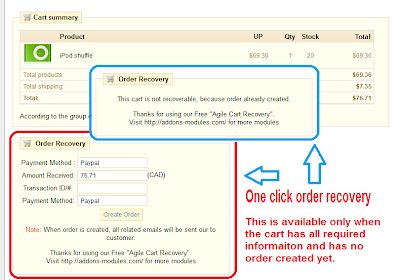
When you should use this added function?
Use case 1: If you want to create orders manually for your customer, you can use front office to signup and create cart, then go back office use fucntion to generate order in just one click.
For example, phone order
use case 2: Because of system trouble (most scenario is payment system), customer placed the order and paid the order, but system was not able to create the order.
How to Install
1. Unzip downloaded package
2. Copy AgileCartsExt.php to following folder
YourStoreRoot/YourStoreAdmin/tabs/
3. Log in to you back office to change the "Carts" tab setting
A .for 1.3x: [Tools] - [Tabs], find "Carts" record and click edit icon.
for 1.4x: [Employees] - [Tabs], find "Shopping Carts" record and click edit icon.
B. change Class to from "AdminCarts" to "AgileCartsExt" and save it
that's it, you are all set.
Notes
1. If an order has been created from the cart, then you are not able to generate from this cart.
2. if there is not enough information, for example, no customer information, you will not able to generate order from the cart.
You can get this addon at http://addons-modules.com/
You can find some other modules and free modueles
-----------------------------------------------------------------------
Paypal Express checkout module with recurring payment | Authorize.NET Express Checkout module with recurring payment | Membership management module | Pickup location module(Google maps) | Multiple seller/vendor module | Product Reviews/Rating module | Rotating Banner module | News Letter promotion module | Quantity Discount Indicator module | Prepaid module for digital goods
1. This is free addon of AdminCarts.php that allow store owner to generate order from existing cart in just one easy click.
2. This modification will show a GUI on cart detail page that allow generate order from existing cart.
Compatible version
This addon works on all 1.3x and 1.4x PrestaShop
No core file change required

When you should use this added function?
Use case 1: If you want to create orders manually for your customer, you can use front office to signup and create cart, then go back office use fucntion to generate order in just one click.
For example, phone order
use case 2: Because of system trouble (most scenario is payment system), customer placed the order and paid the order, but system was not able to create the order.
How to Install
1. Unzip downloaded package
2. Copy AgileCartsExt.php to following folder
YourStoreRoot/YourStoreAdmin/tabs/
3. Log in to you back office to change the "Carts" tab setting
A .for 1.3x: [Tools] - [Tabs], find "Carts" record and click edit icon.
for 1.4x: [Employees] - [Tabs], find "Shopping Carts" record and click edit icon.
B. change Class to from "AdminCarts" to "AgileCartsExt" and save it
that's it, you are all set.
Notes
1. If an order has been created from the cart, then you are not able to generate from this cart.
2. if there is not enough information, for example, no customer information, you will not able to generate order from the cart.
You can get this addon at http://addons-modules.com/
You can find some other modules and free modueles
-----------------------------------------------------------------------
Paypal Express checkout module with recurring payment | Authorize.NET Express Checkout module with recurring payment | Membership management module | Pickup location module(Google maps) | Multiple seller/vendor module | Product Reviews/Rating module | Rotating Banner module | News Letter promotion module | Quantity Discount Indicator module | Prepaid module for digital goods
Monday, August 1, 2011
PrestaShip Tips - Virtual product download link problem at order history page
Today,I found a bug of PrestaShop at Order history page of my account area, the problem was found on PrestaShop 1.3x, but I confirmed that the same problem also happens in PrestaShop 1.4x (so far 1.4.4.0)
This problem happens in specific scenario.
Usually there is a link on the product name to download the virtual products.
But if you have a virtual product (downloadable product) with a customization fields, then at My Account area, Order History page, the download link will not appear.

Here is my case:
I have download product (prestashop module), with one required text fields let customer to input store domain name. Before I set the customized field, everything works fine. But once I add the required customized filed, the link disappeared.
To fix this problem, you need to modify the them file
YourStoreRoot/themes/YourStoreTheme/order-detail.tpl
You need to replace one line of code at location in this file as shown with code followed.

Here is screenshot after the problem is fixed.

What is the issue.
This problem happens in specific scenario.
Usually there is a link on the product name to download the virtual products.
But if you have a virtual product (downloadable product) with a customization fields, then at My Account area, Order History page, the download link will not appear.

Here is my case:
I have download product (prestashop module), with one required text fields let customer to input store domain name. Before I set the customized field, everything works fine. But once I add the required customized filed, the link disappeared.
How to fix the issue.
To fix this problem, you need to modify the them file
YourStoreRoot/themes/YourStoreTheme/order-detail.tpl
You need to replace one line of code at location in this file as shown with code followed.

 {if $product.download_hash && $invoice}
  <a href="{$base_dir}get-file.php?key={$product.filename|escape:'htmlall':'UTF-8'}-{$product.download_hash|escape:'htmlall':'UTF-8'}" title="{l s='download this product'}">
   <img src="{$img_dir}icon/download_product.gif" class="icon" alt="{l s='Download product'}" />
  </a>
  <a href="{$base_dir}get-file.php?key={$product.filename|escape:'htmlall':'UTF-8'}-{$product.download_hash|escape:'htmlall':'UTF-8'}" title="{l s='download this product'}">
   {$product.product_name|escape:'htmlall':'UTF-8'}
  </a>
 {else}
  {$product.product_name|escape:'htmlall':'UTF-8'}
 {/if}
Here is screenshot after the problem is fixed.

Subscribe to:
Posts (Atom)